
Enable FixupXer on Android
- Enable the FixupXer browser option. In FixupXer, open Settings → Configure Browser mode and turn on Enable Browser mode. This enables FixupXer’s browser alias in Android.
- Select FixupXer in Android. Open Android Settings → Default apps → Browser app, then choose FixupXer. Menu names vary by Android version and device maker.
When Android routes an eligible HTTP(S) link to FixupXer, the app applies the Browser processing choices you saved. It can remove known tracking parameters, apply enabled custom rules, and use a selected frontend when supported. Then choose the offered action, such as opening the result in your preferred browser. FixupXer does not render or load the page.
Choose Browser and Share destinations separately
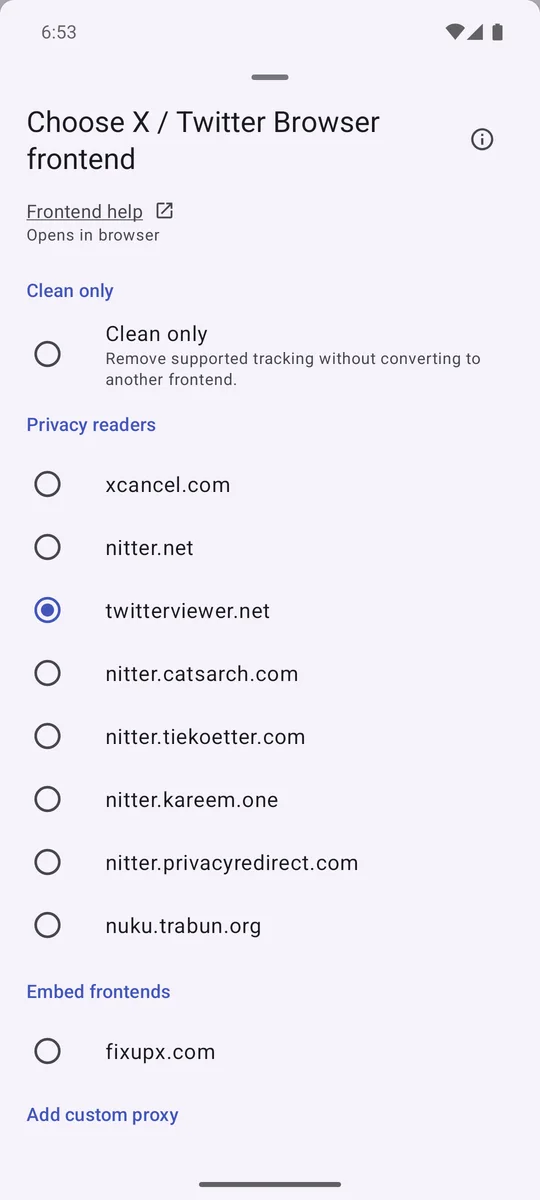
Browser frontend choices are saved separately from the Main and Share choices. For example, you can select a reader for X links that Android sends through Browser Mode, while keeping an embed frontend for links you share from FixupXer. Open Settings → Configure Browser mode → Configure Browser frontends to review the available choices and save your selection.
Android controls link routing
Android determines which app opens each link. Verified App Links may go directly to their associated app, and an app’s built-in browser may bypass the default browser choice. Browser Mode processes only links Android routes to FixupXer.
If a link bypasses FixupXer, check that Browser Mode is enabled and that FixupXer is selected as the default browser. Also review the source app’s supported-link settings. You can return to your previous default browser in Android settings at any time.
Opening a link hands it to another app
URL validation, cleaning, custom rules, and frontend rewriting happen locally. FixupXer has no network permission and does not contact the original site or a reader service. When you choose Open, Android passes the result to another app or browser; that recipient may use the network and its own privacy practices.
Independent reader services control their availability and the content they show. FixupXer does not grant access to private posts.
Get FixupXer on Google Play Read the full Browser Mode guide